

New VPN capabilities with Wireguard in FRITZ routers!Box


WireGuard is an extremely simple, fast and modern open source VPN protocol that uses state-of-the-art cryptography. WireGuard is faster, simpler, leaner and more useful than IPsec or OpenVPN. WireGuard is designed as a general-purpose VPN for operation on both embedded interfaces such as routers and supercomputers. From now on also available in FRIZT routers!Box from FRITZ software version!OS 7.50! Originally released for Linux, now cross-platform (Windows, macOS, BSD, iOS, Android) has a wide range of applications. It is currently under intensive development, but is already considered the most secure, easy-to-use and simplest VPN solution in the IT industry.
WireGuard uses state-of-the-art cryptography such as the Noise protocol framework, Curve25519, ChaCha20, Poly1305, BLAKE2, SipHash24, HKDF.
The difference between WireGuard and IPsec protocols is noticeable in terms of throughput and response time (ping). Lower computing power requirements contribute to reduced power consumption - which is crucial, for example, when using on mobile devices such as smartphones, laptops and tablets.
Simplicity of putting together a connection. Friendly and clear wizard in the FRITZ router!Box will guide you step by step through the setup. No more rewriting keys, addresses and complicated passwords on your smartphone.
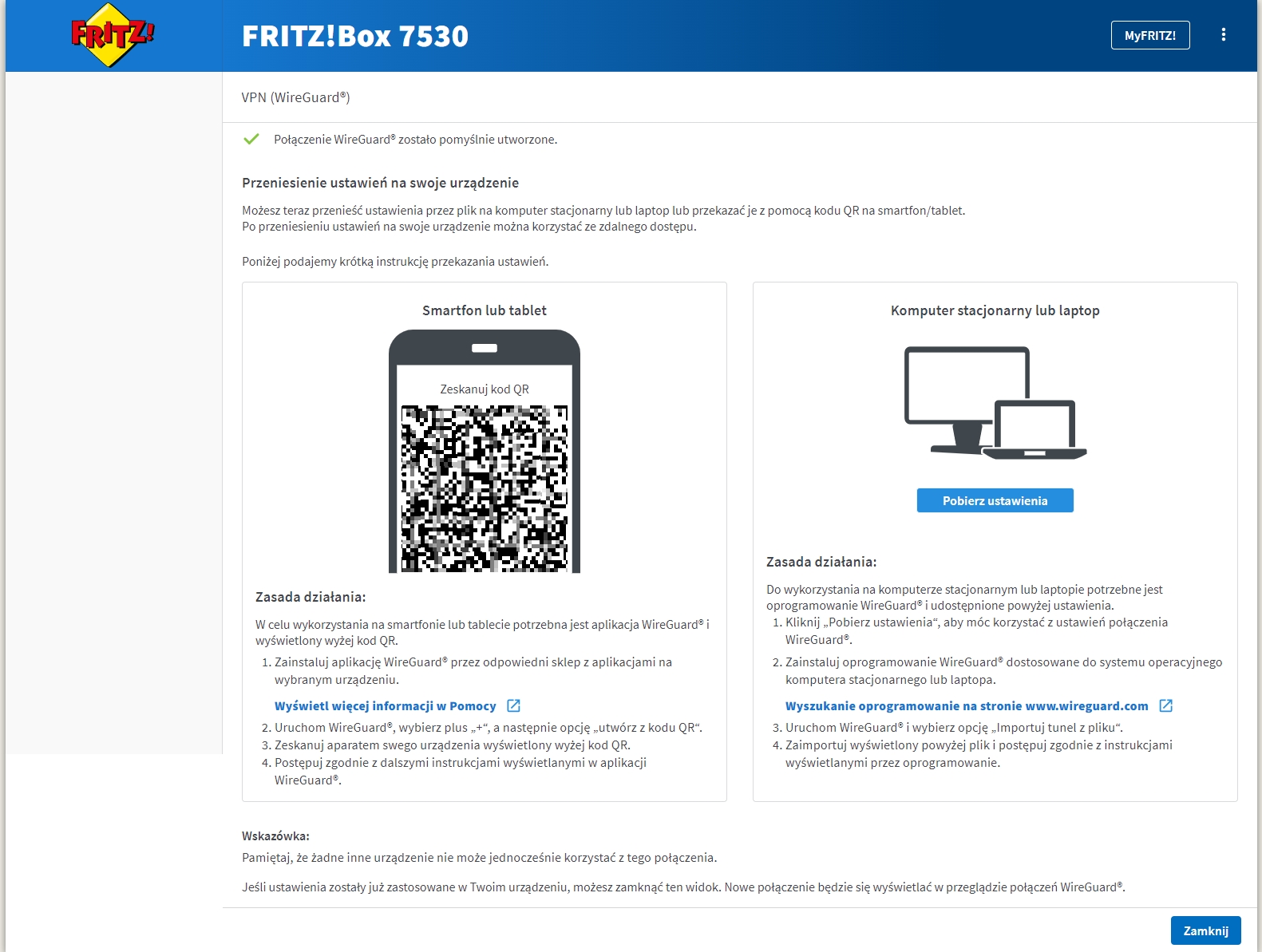
Simply download the WireGuard app, which is available for iOS and Android. After installing the application, click "+" and "scan QR code", point the camera towards the monitor with the displayed QR code with settings and you're done! VPN connection is already saved.

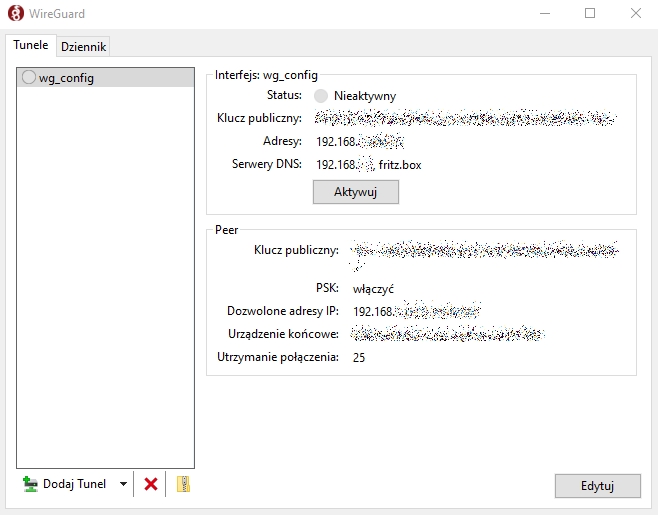
Setting up the connection on a Windows and iOS computer is also trivial. All thanks to the WireGuard app and wizard on the FRITZ router website!Box. The settings file is downloaded to your computer. Then, in WireGuard, indicate by clicking "Add Tunnel" and point to the file with the extension ".conf" default file name is "wg_config". The connection is established by clicking on "Activate".
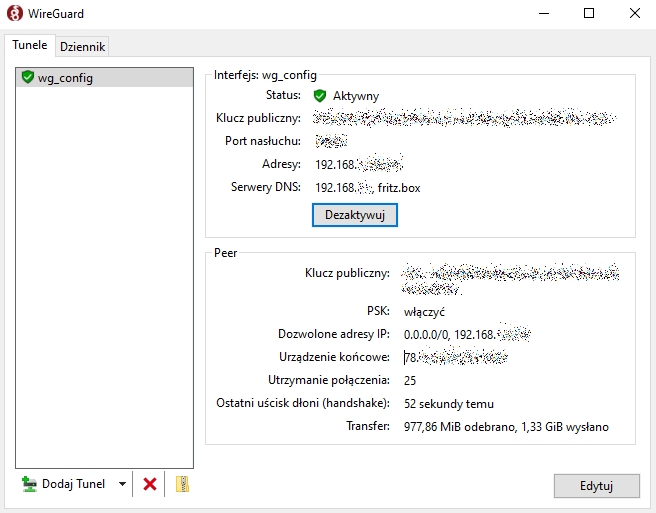
Once the connection is established, the status "Active" will be displayed:
Two FRITZ routers!Box connected in LAN-LAN network? No problem! Just export the Wireguard VPN settings to the other router. All without rewriting complicated data, passwords. Quick and efficient - even a person without advanced IT knowledge can handle it. All you have to do is make sure the IP addresses on the internal network are different. For example, the first router has a default DHCP address of 192.168.178.0 then the second router should have a different one, for example. 192.168.1.
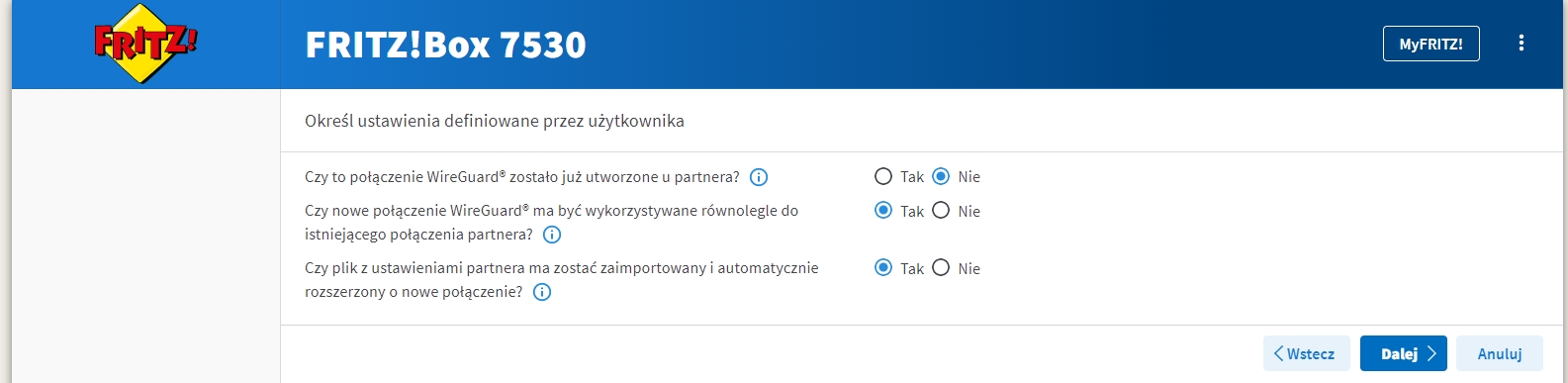
After exporting the settings - on the second router, point to the previously saved file by clicking on "Select File".
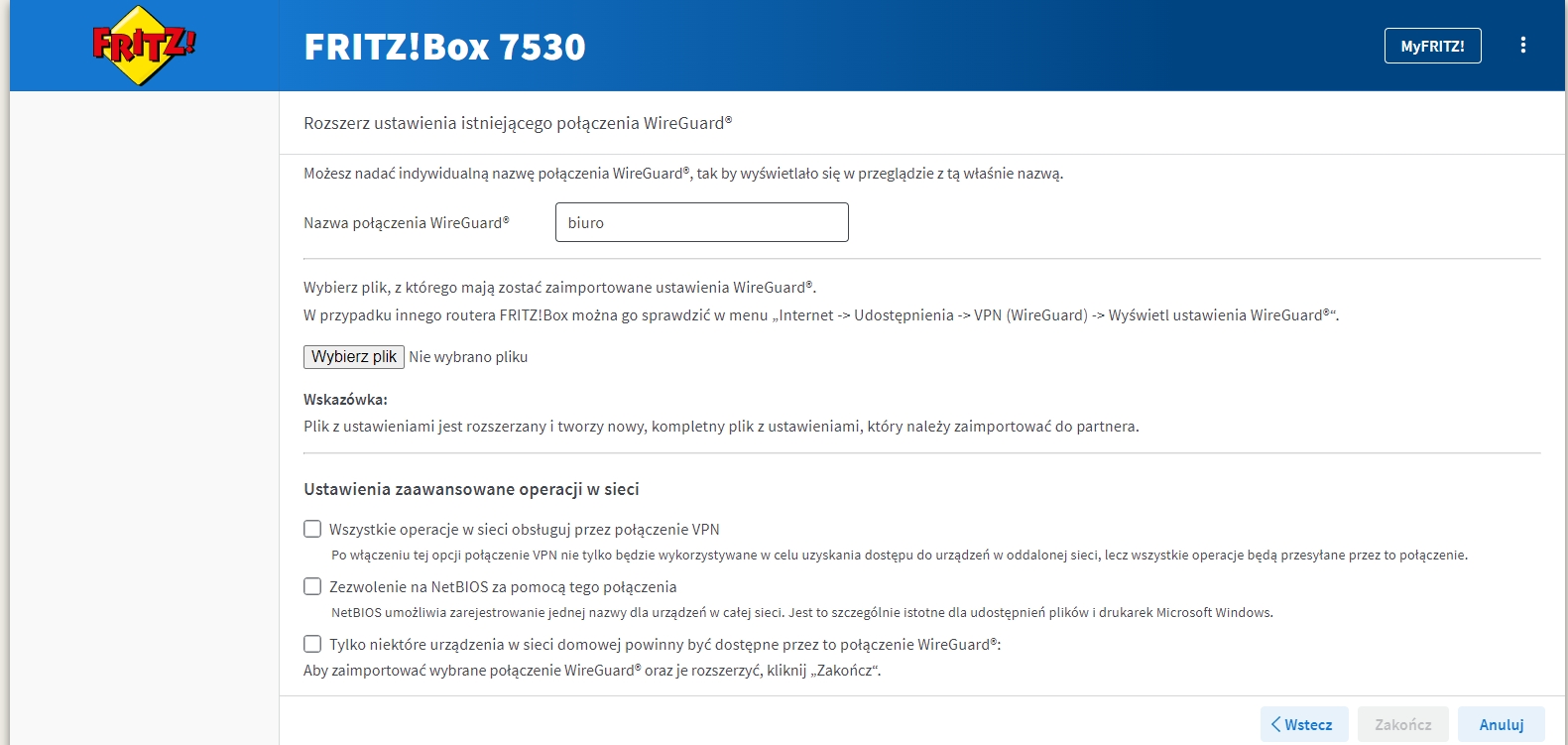
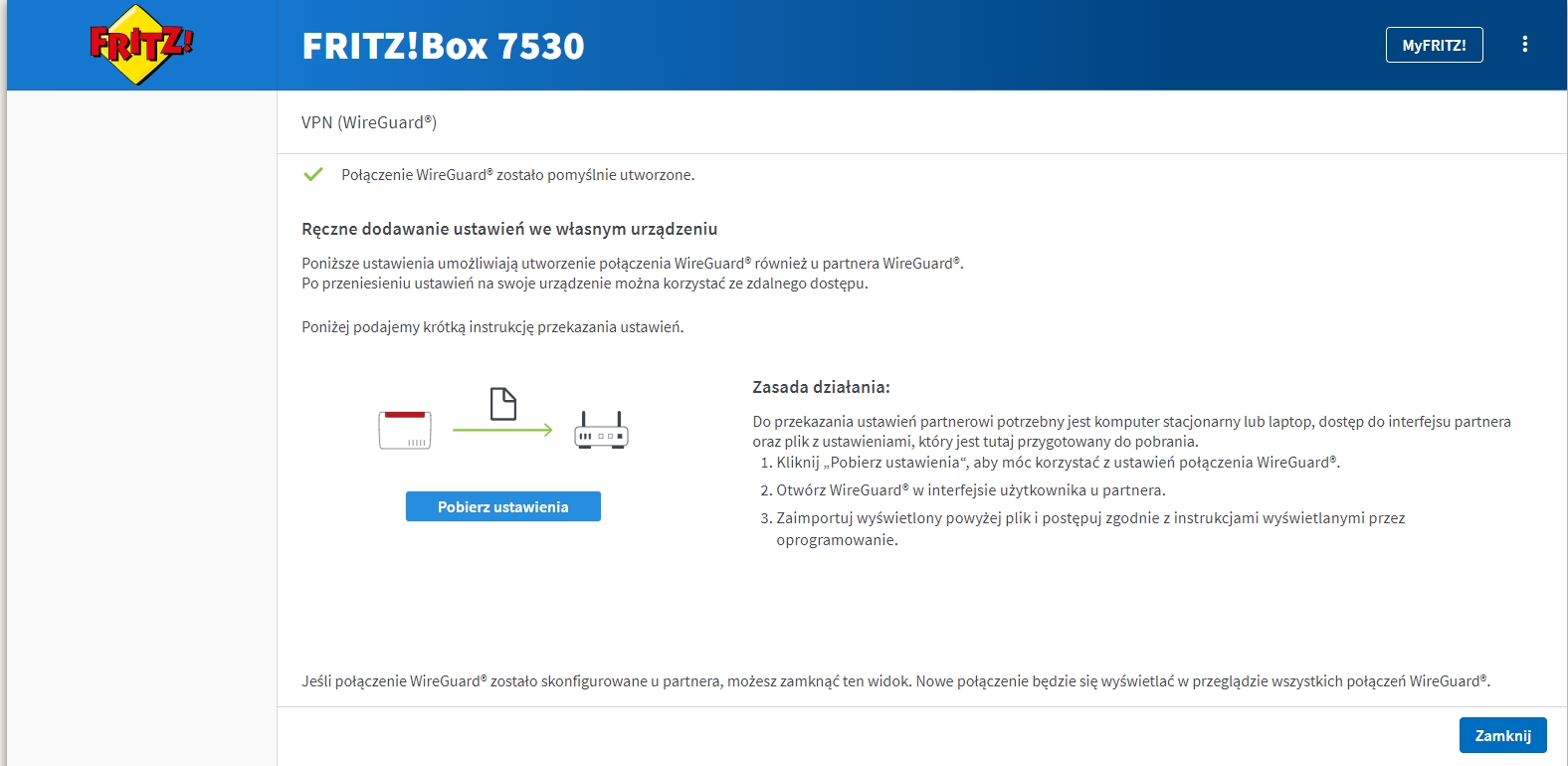
If the file was successfully imported - you will see information about the successfully created connection.
Requirements: FRITZ router!Box with FRITZ software!OS 7.5X. The connection will be successfully established if the FRITZ router!Box (master) has access to a public (external) IP address. Can be variable or fixed. With the MyFRITZ service! router will always be at the same unique address from anywhere in the world.
